
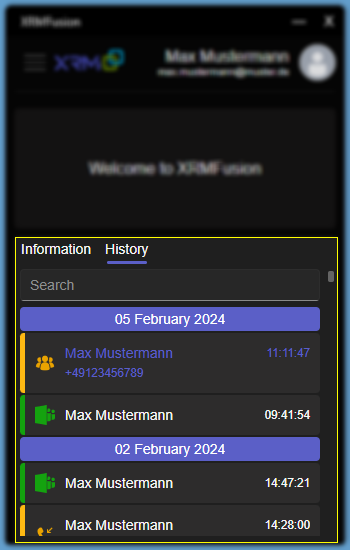
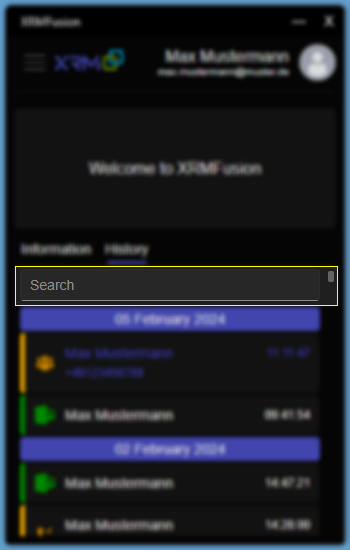
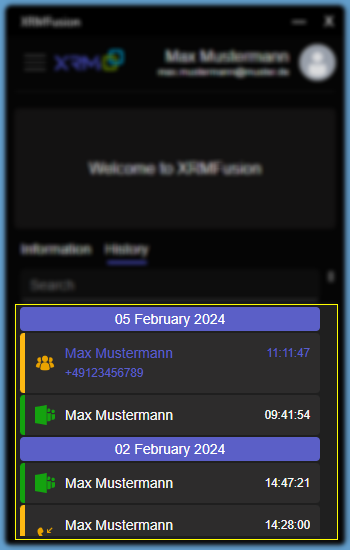
Page History
...
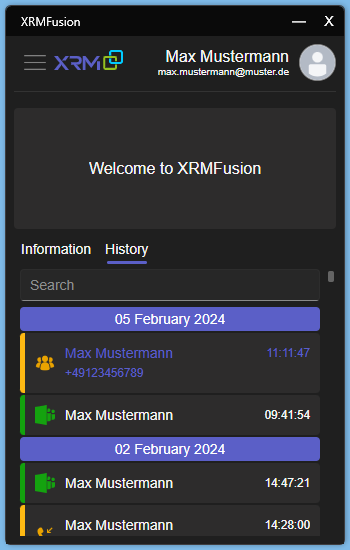
| Result | Color |
|---|---|
| Accepted |
|
| Ignored |
|
| Declined |
|
Usage
Sign-In
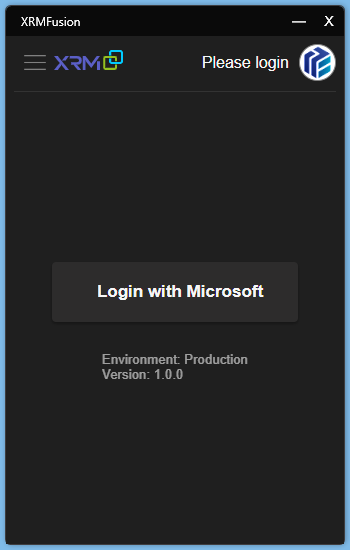
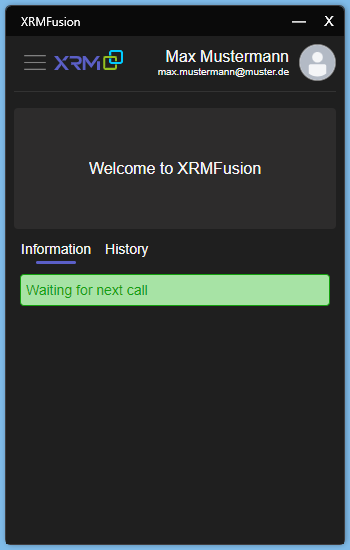
As soon as the app is launched, it carries out an automatic login.
Additionally, feel free to adjust the app's size horizontally and vertically to suit your preferences.
Menu
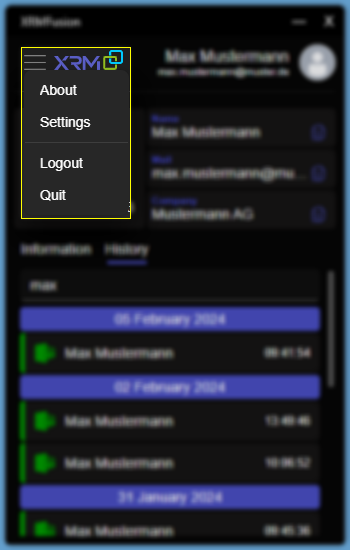
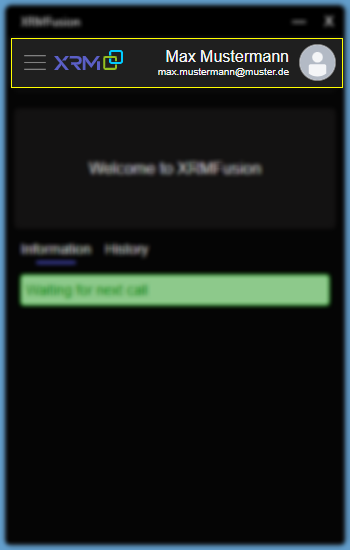
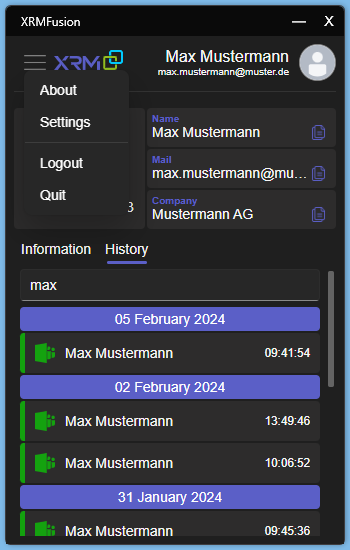
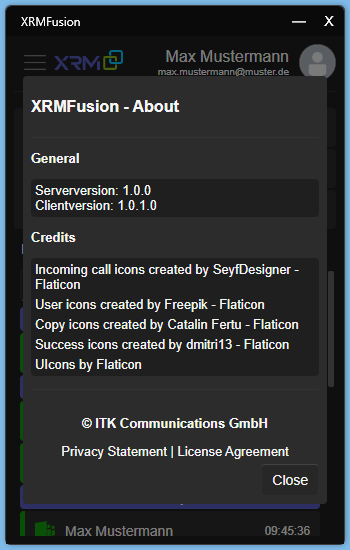
In the upper left corner, there is a menu icon that looks like three stacked lines. This is your access to additional options, in particular Info, Settings, Logout, and Quit.
...
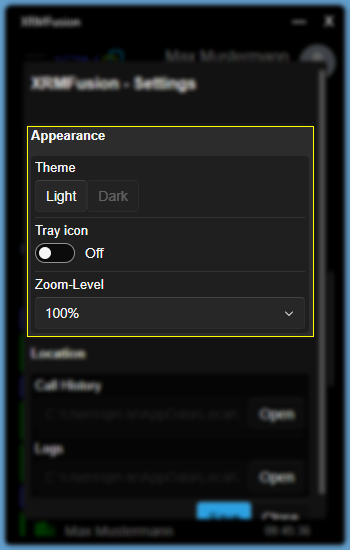
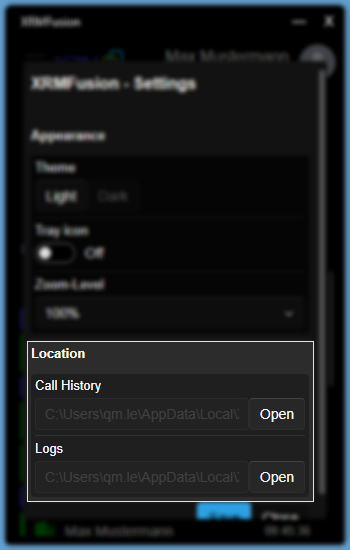
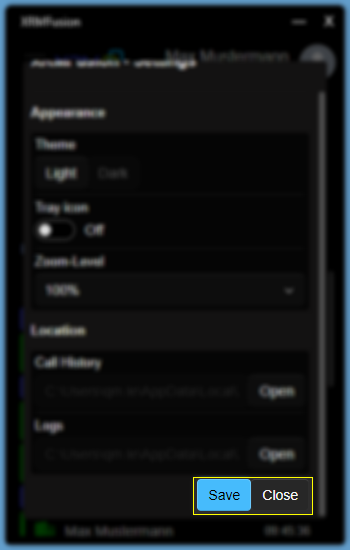
Within the "Settings" menu, you can easily toggle between the light and dark modes, designate the application as a tray icon, and switch between various zoom levels. Furthermore, this section provides visibility into the storage locations for call history and logs on your computer.
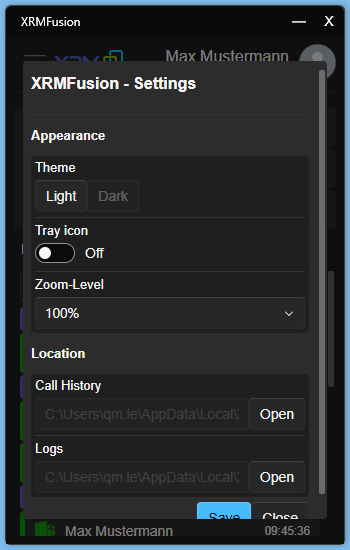
| Category | Setting | Description |
|---|---|---|
| Appearance | Theme | Allows to switch between a light and dark mode This setting doesn't require to be saved |
| Tray icon | Allows to use the tray icon This setting requires a client restart | |
| Zoom-Level | Allows to adjust the zoom of the view This setting has to be applied with the save button | |
| Location | Call History | Path of the call history database |
| Logs | Path of the client logs |
Logout & Quit
| Tip |
|---|
Did you know? The clients remembers the positioning and size of the window when you close the application. |
...
We've tucked the 'Quit' button away in this menu to avoid any accidental exits that could cut off your access to the app's features. As of now, instead of a close button, the buttons on the top right corner simply tuck the app away without closing it—this way, you won't lose any important information by closing the app by mistake.
Usage
Sign-In
As soon as the app is launched, it carries out an automatic login.
Additionally, feel free to adjust the app's size horizontally and vertically to suit your preferences.
Main Page
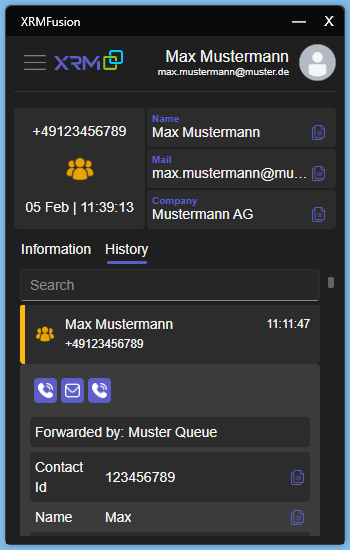
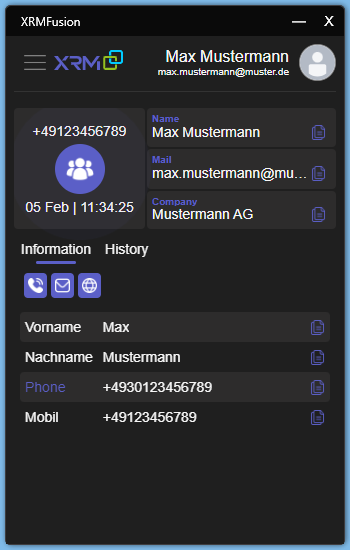
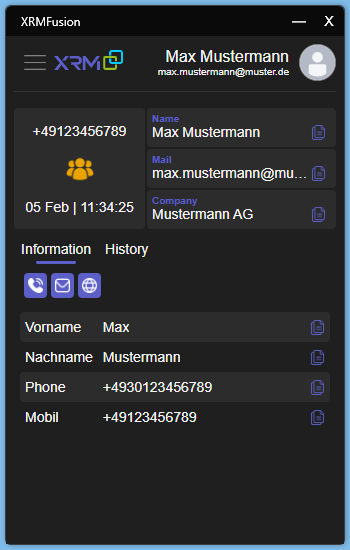
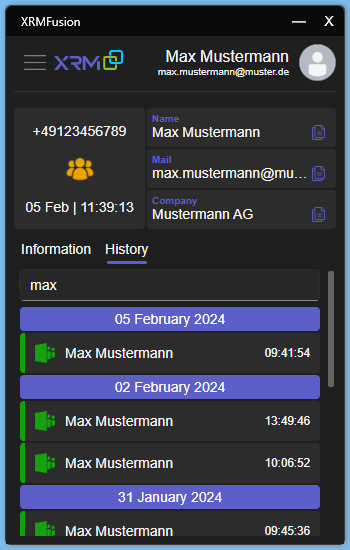
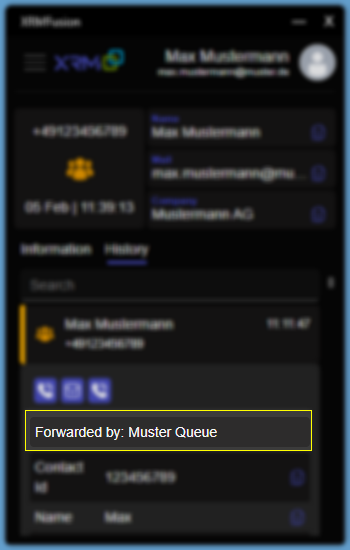
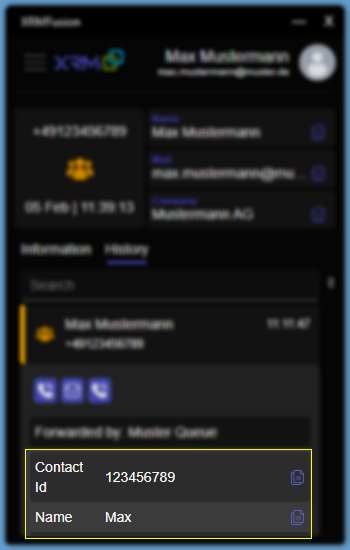
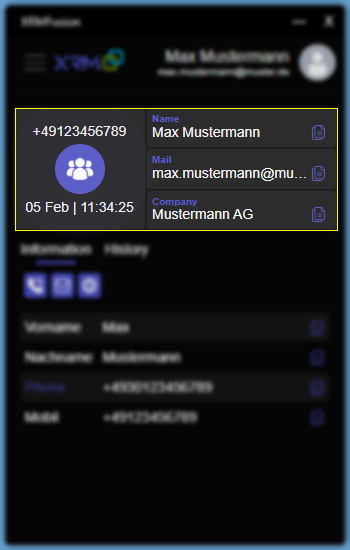
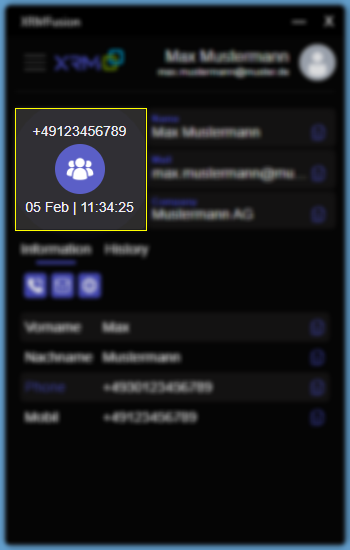
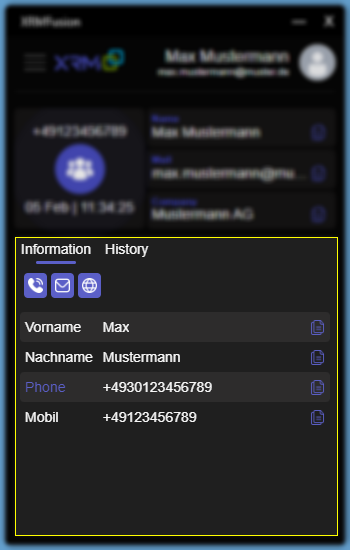
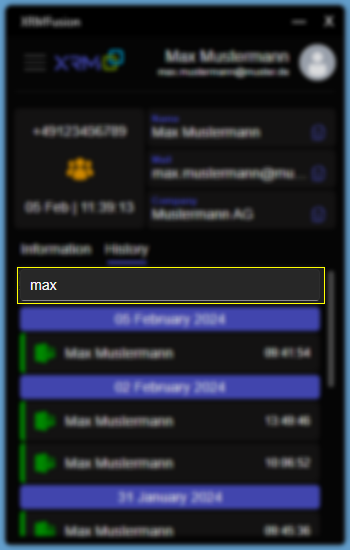
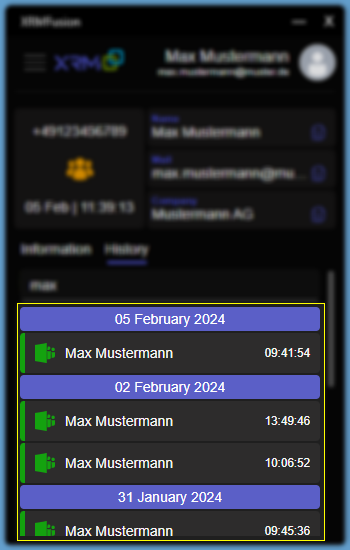
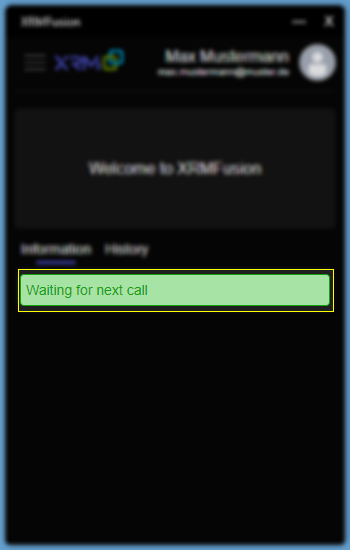
Caller Information
...
