

| Info |
|---|
To create a new ticket, you must first log in to the new Service Desk portal. If you have not yet activated your account, follow these instructions → Wie aktiviere ich meinen Account für das Medialine Service Desk Portal? |
Answer
- Visit our new support home page Visit the service desk portal at https://service.medialine.ag/support Press the button "Here's to the new Service Desk Portal!"jira/servicedesk/customer/portal/18
Log in with your account.
Tip If this is your first time using the service desk portal, activate your account.
Select a suitable request
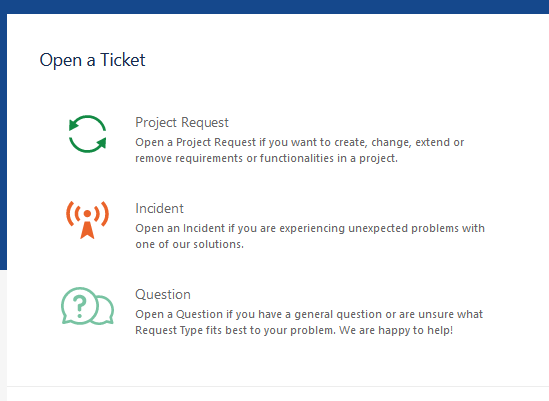
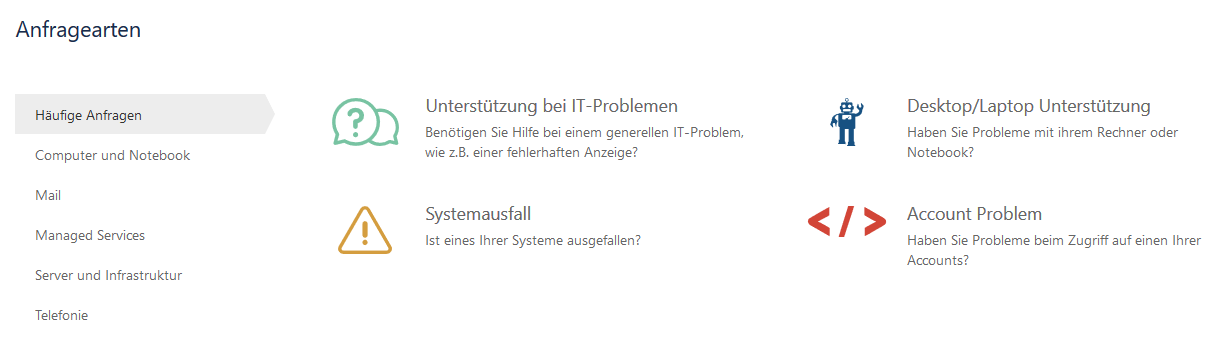
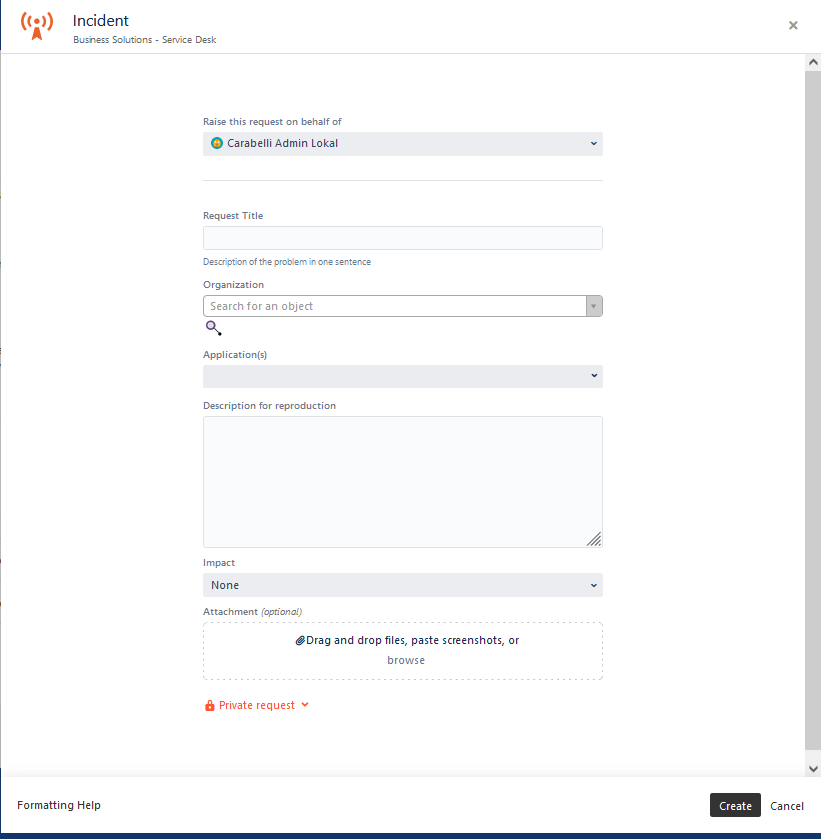
The ticket input screen opens in which all necessary information must be entered:
Tip The
Info Please remember: the more information you provide in advancewhen you initially create the ticket, the faster and better we can process resolve your ticket.
Always consider: Who is affected by the problem? How often does the problem occur? How urgent is it really? & if necessary, can it wait until next week? Do you have any error messages that can be attached to the ticket?
The following information must can be provided:
- Title: In the title, you give the ticket a name. The title should be short and concise so that it is clear at a glance what the ticket is about.
- Client / Company: Your Client object is bound to your user account by means of through our internal CRM system, so you only have the object assigned to you to choose from.
- Title: In the title, you give the ticket a name. The title should be short and concise, so that it is clear at a glance what the ticket is about.
- Name the affected application: Within this field, you can optionally specify the affected system. This could be, for example, a host name or a service name.
Description for reproductionDescription: In the description field, describe your problem in as much detail as possible so that as few queries as possible remain open.
- Name the affected system: Within this field you can optionally specify the affected system. This could be, for example, a host name or a service name
What impact does your problem have on the operation?: In the right column, you can see the definition of the impact. Please enter this information accurately, as this is the only way we can provide the best possible support.
- How urgent is your problem?: In this field you rate the urgency of your problem. Analogous to the indication of the impact, you will find a definition of priority within the right column of this page. We also ask you to assess this information carefully.
.
- Attachment: Using the attachment field, you have the possibility to attach screenshots of error messages or other files that could be relevant for the solution of the ticket directly to the ticket.
Tip The more information you provide when you initially create the ticket, the faster we can resolve your ticket.
Always consider: Who is affected by the problem? How often does the problem occur? How urgent is it really? & if necessary, can it wait until next week? Do you have any error messages that can be attached to the ticket?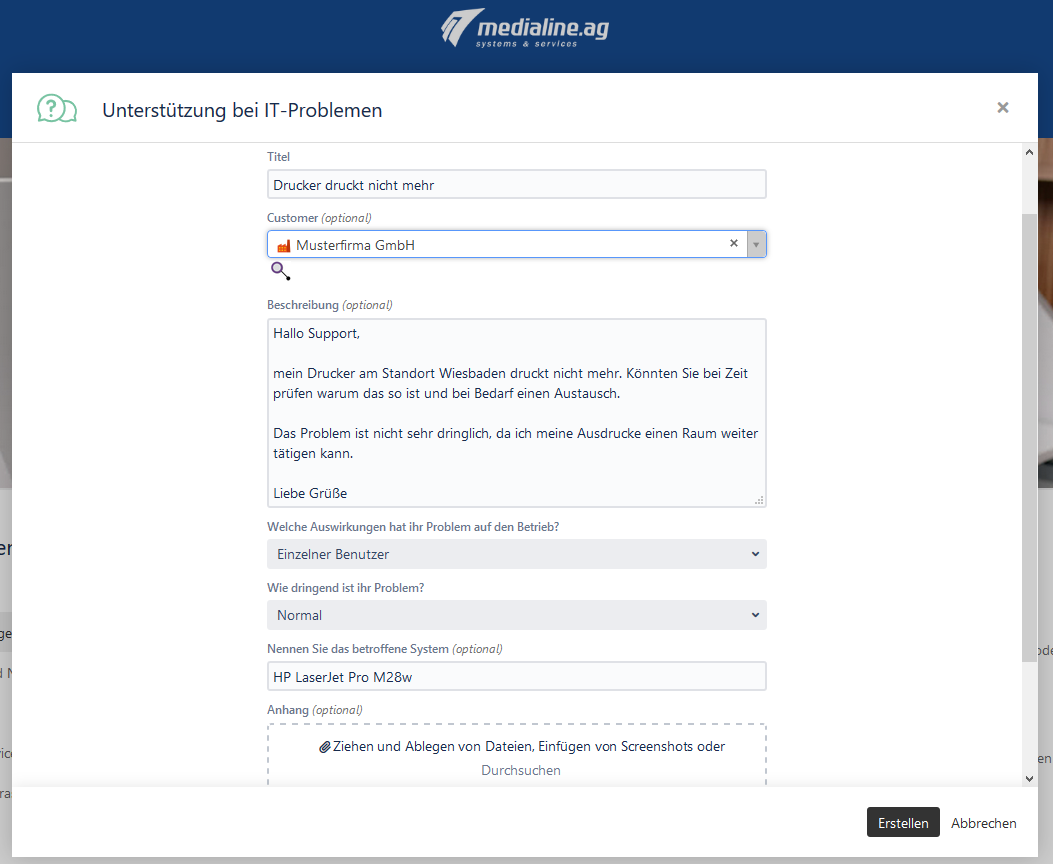
Confirm your entries with "Create"- Your ticket has been created and you will be redirected to the ticket detail view.
| Excerpt Include | ||||||
|---|---|---|---|---|---|---|
|
| Info | |||||||||
|---|---|---|---|---|---|---|---|---|---|
| |||||||||
|
