Setup initiation
- Go to the URL https://service.medialine.ag/intranet/login.action?os_destination=%2F
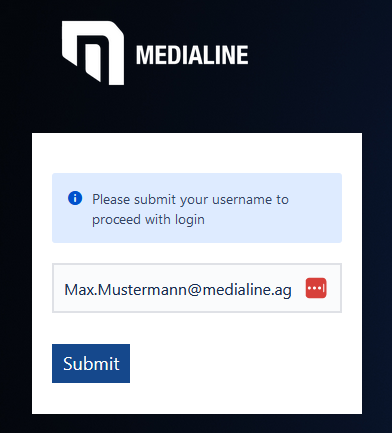
- Enter your username in the following window
- Confirm by clicking "Submit"."
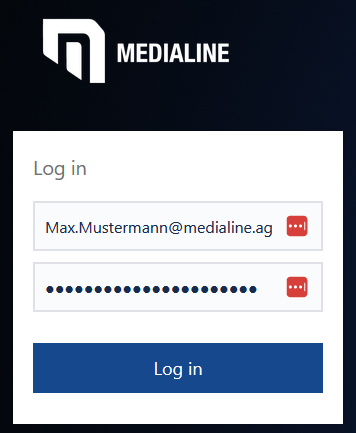
- Now enter your login name and corresponding password
- Then click on "Log in"
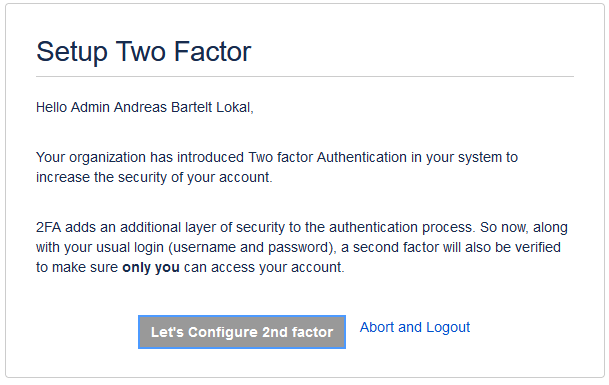
- A notice will now appear prompting you to set up the second factor.
- Click on "Let's Configure 2nd factor" for this purpose
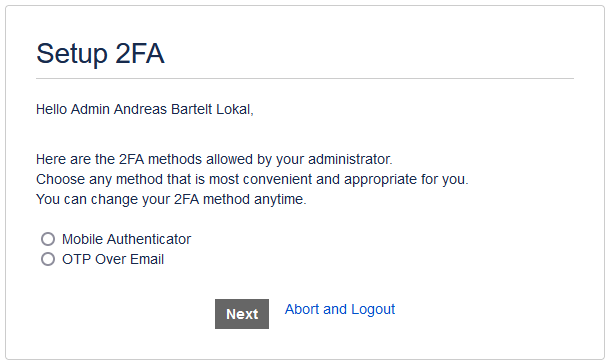
- Now select whether you want to use a mobile authenticator or OTP via email
- Activate the corresponding checkbox.
- Click on "Next"."
Mobile Authenticator Setup
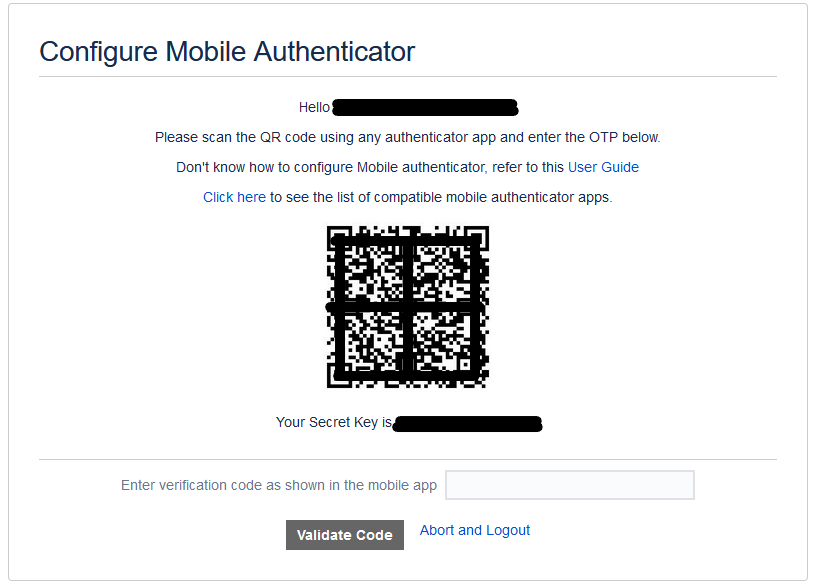
- If you have chosen the Mobile Authenticator option, you will now see the following window
- Scan the QR code with your Authenticator app (e.g. Microsoft Authenticator)
- Enter the code shown in the app below into the field
- Click on "Validate Code"."
- After verifying the code, you are now logged in and have successfully configured the second factor
OTP Over Email Setup
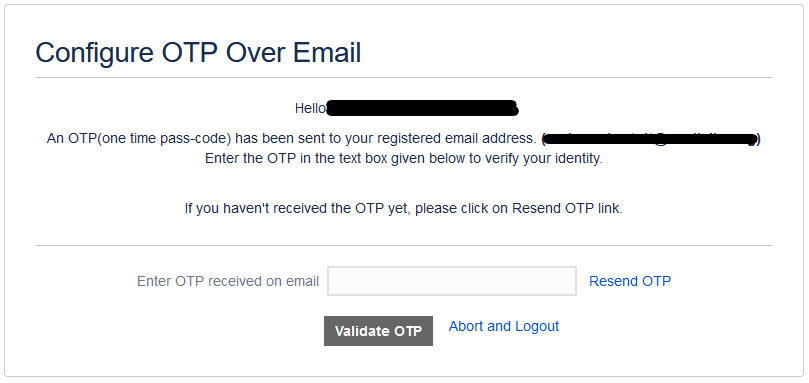
- If you have chosen the OTP Over Email option, you will now see the following window
- You will also receive an email shortly with the required "One Time Password"
- Once you have received the email, enter the code in the corresponding field
- Click on "Validate OTP"
- Here is an example of such an Mail
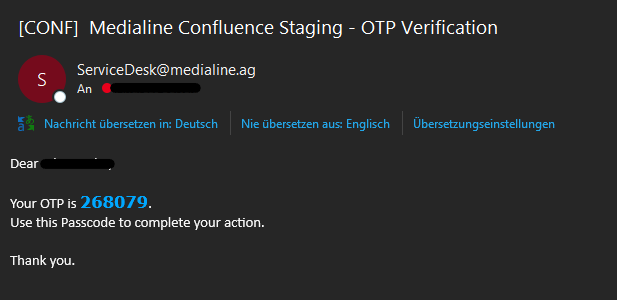
- Here is an example of such an Mail
- After verifying the OTP, you are now logged in and have successfully configured the second factor
Adding additional authentication method
- Click on your profile picture in the top right corner

- This will open a menu with several options.
- Click on "Two Factor Configuration"
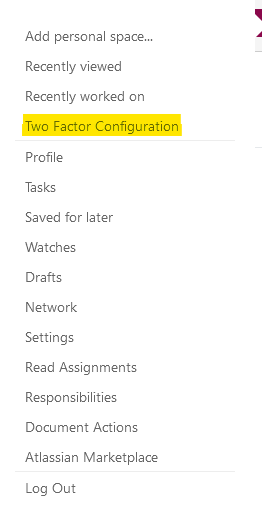
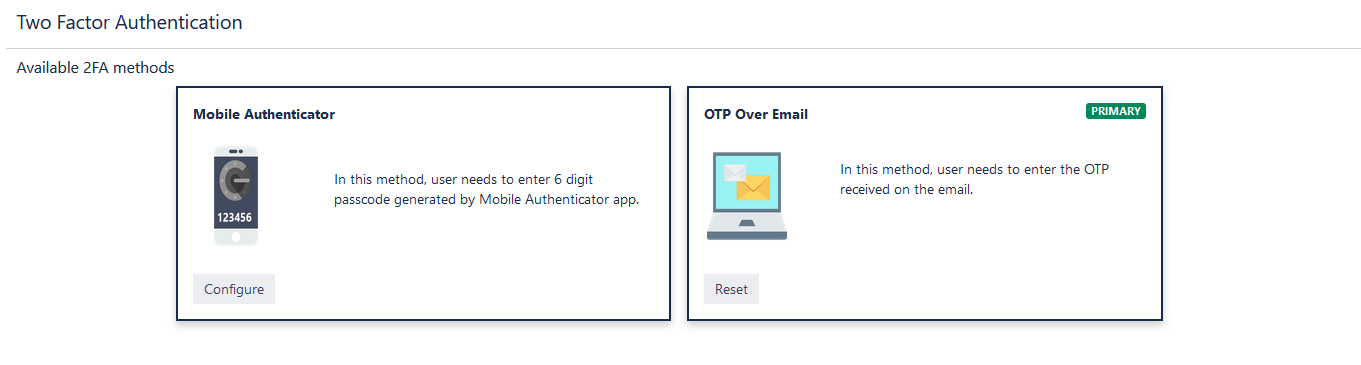
- Here you can now add new methods.
- Reset already configured methods.
- Or change the primary method
Related articles
Related articles appear here based on the labels you select. Click to edit the macro and add or change labels.
|