Answer
If your ticket has already resolved itself, you have several options to resolve or cancel the ticket.
Cancel: You can cancel a ticket if the problem has resolved itself without Medialine support. Example for canceling a ticket: You have opened a ticket that your e-mail reception and dispatch does not work and you assume that there is an error on the e-mail server. Immediately or some time after opening the ticket, you notice that your Internet connection is down and that mail sending/receiving is not working due to this. Resolve: You can resolve a ticket if you have already been in contact with Medialine Support and the problem has been solved by the proposed solution. Example for resolving a ticket: You have opened a ticket that your application does not work properly anymore. Medialine Support advises you to restart your computer. After restarting, the program works again without any problems. |
Option 1 - "Cancel":
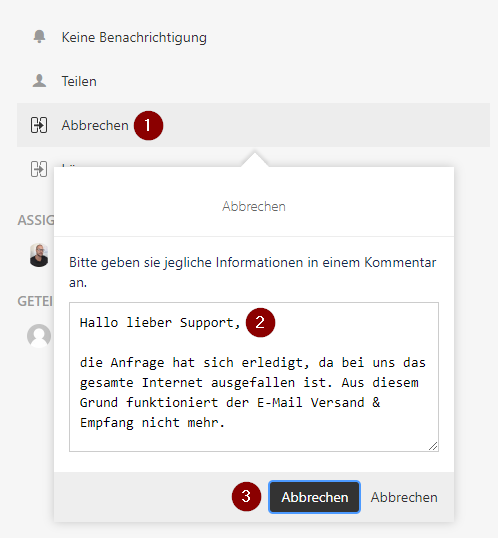
If you want to cancel a ticket request, proceed as follows:
- Open the Ticket Detail screen
- Click on "Cancel" (1), leave a comment as information for why the ticket is cancelled (2) and confirm with "Cancel" (3).
Option 2 - "Resolve":
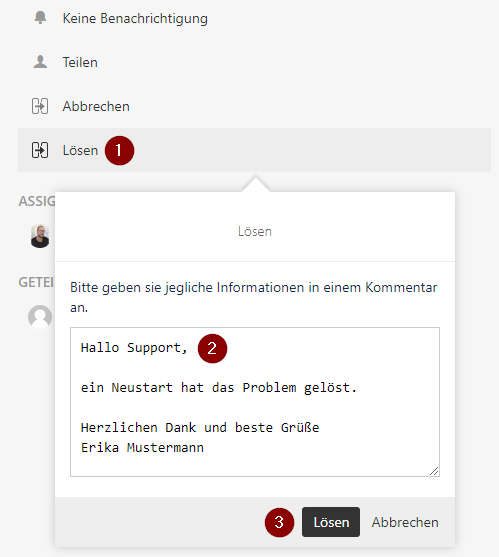
If you want to resolve a ticket, proceed as follows:
- Open the Ticket Detail screen
- Click on "Resolve" (1), leave a comment as information for why the ticket is resolved (2) and confirm with "Resolve" (3).